EN
FlowParent

Set up FlowParent on your iPhone

In just a few minutes you create your account, add FlowParent to your Home Screen as an app and start the setup. Simply follow the steps in order – ideally right on your iPhone.

Part 1

Create an account

Open the app
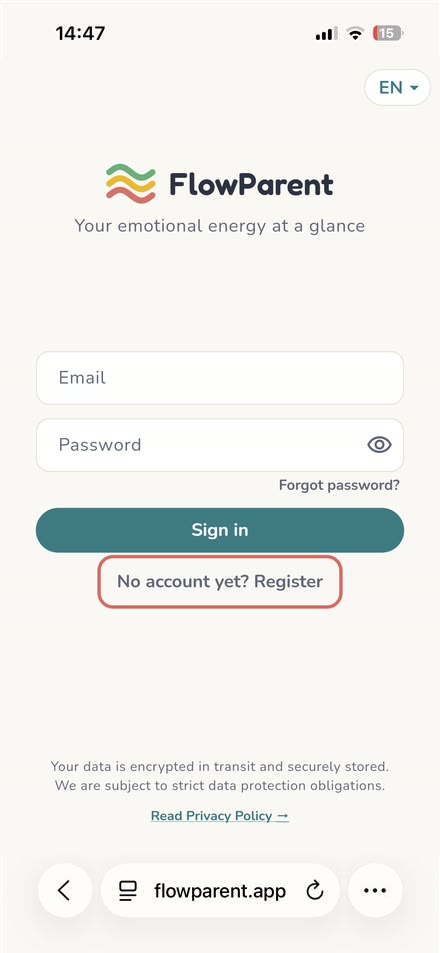
FlowParent sign-in page in Safari, “No account yet? Register” highlighted
1

Start registration

Tap flowparent.app – the link opens FlowParent directly in Safari. Alternatively, type the address into the address bar and tap Open the app on the start page. Then tap No account yet? Register.

The link doesn’t open in Safari, e.g. from within WhatsApp? Copy the address and paste it into Safari’s address bar.
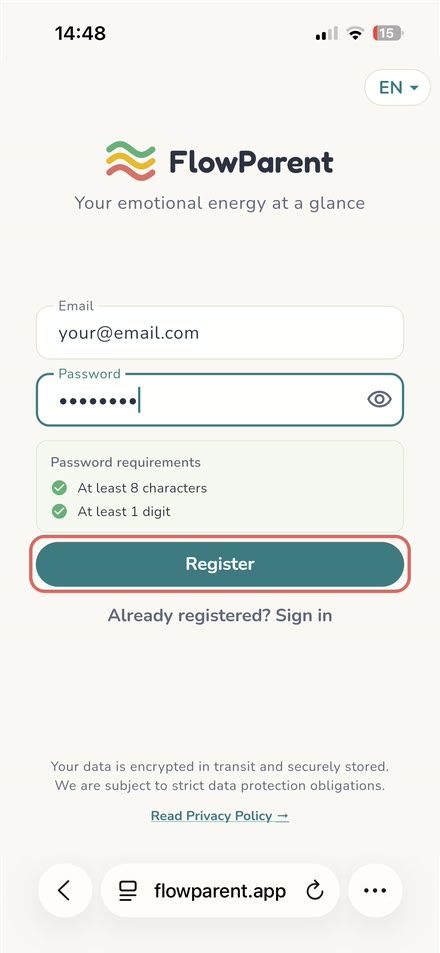
Registration form with email, password and fulfilled password requirements
2

Enter email and password

Enter your email address and a password. It needs at least 8 characters and 1 number. Once both checkmarks are green, tap Register.

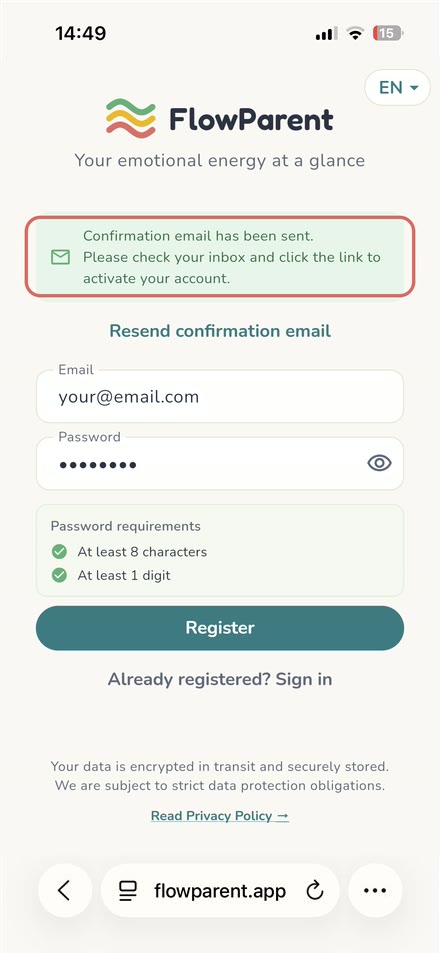
Notice: confirmation email has been sent
3

Confirmation email is on its way

FlowParent sends you an email. Leave it for a moment – first you add the app to your Home Screen.

No email? Check your spam folder or tap “Resend confirmation email”.

Part 2

Add the app to your Home Screen

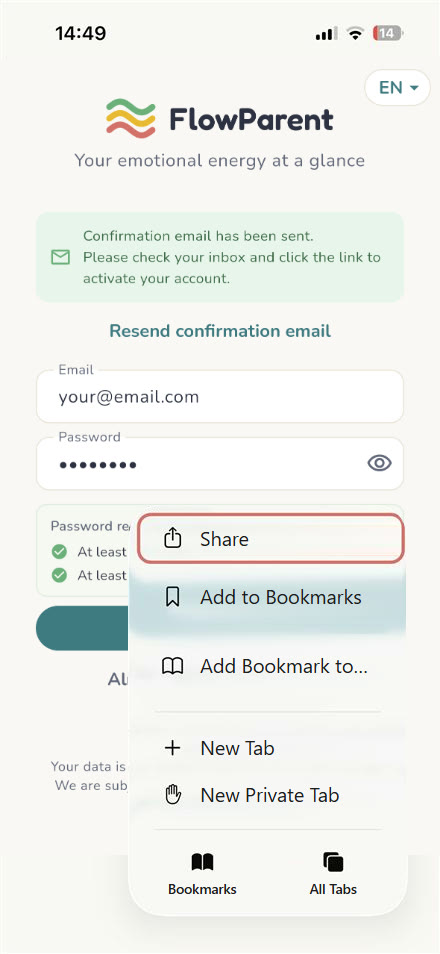
Safari menu with “Share” highlighted
4

Choose “Share”

In Safari, tap ••• at the bottom right and then Share at the top of the menu.

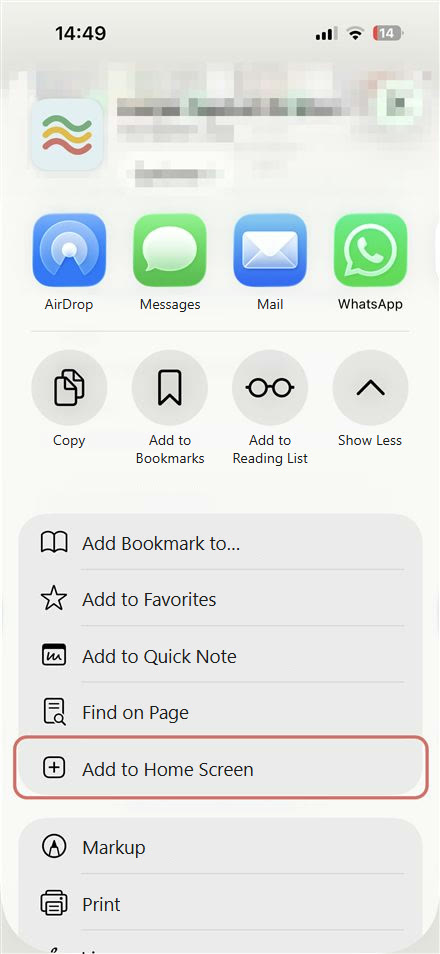
Share menu with “Add to Home Screen” highlighted
5

“Add to Home Screen”

Scroll down in the share menu and tap Add to Home Screen.

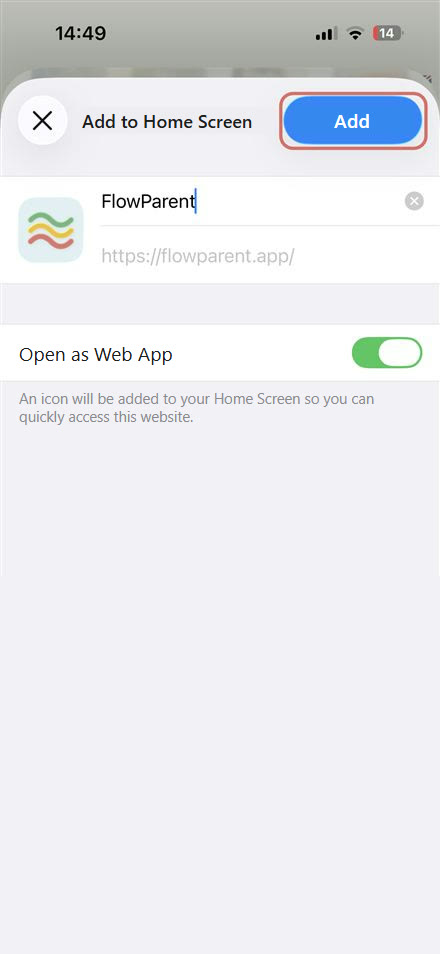
“Add to Home Screen” dialog with “Open as Web App” switched on and “Add” highlighted
6

Add as a web app

Keep the name FlowParent and make sure Open as Web App is switched on. Then tap Add.

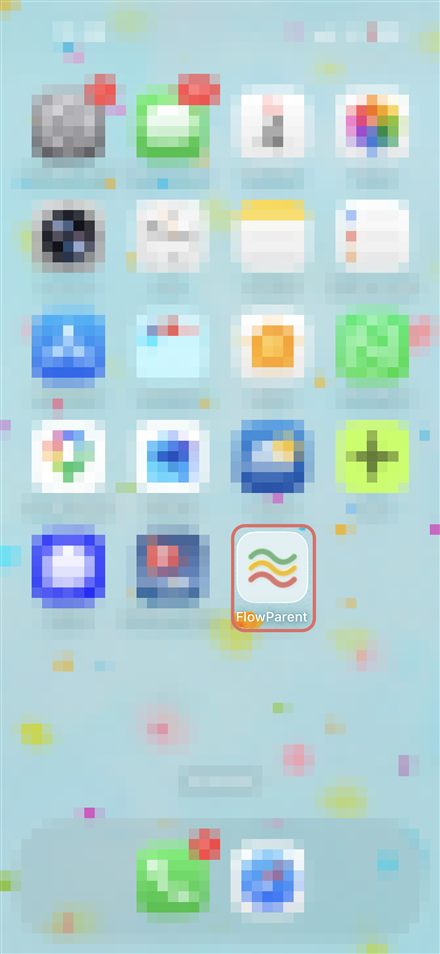
Home Screen with the new FlowParent icon
7

The icon is there

FlowParent is now on your Home Screen. From now on, always open the app via this icon.

Part 3

Confirm and get started

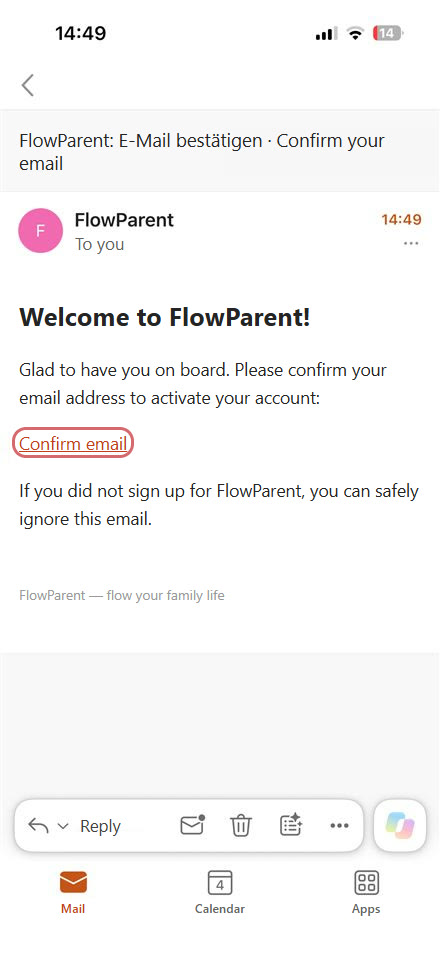
Welcome email from FlowParent with the confirmation link highlighted
8

Confirm your email

Open the welcome email from FlowParent and tap the confirmation link (Confirm email). The link opens FlowParent in Safari.

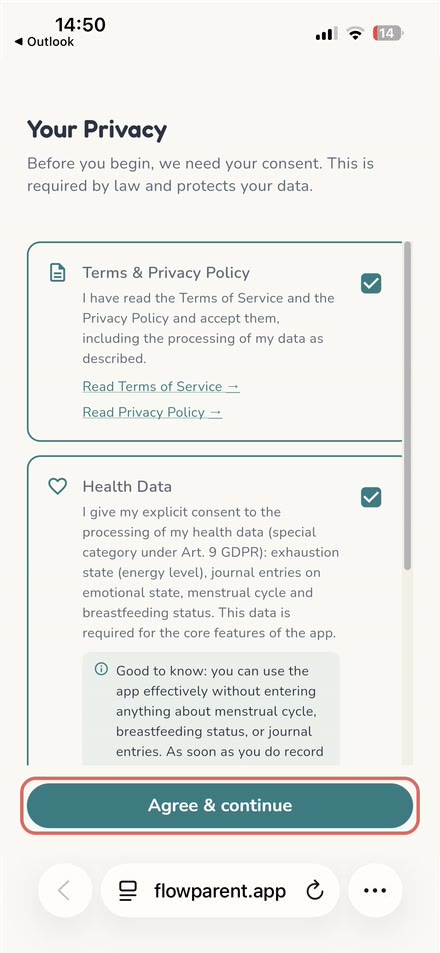
“Your Privacy” page with consents and the “Agree & continue” button highlighted
9

Confirm your privacy settings

Read the consents, tick the boxes and tap Agree & continue. You can withdraw your consents at any time under Settings → Privacy. You can close Safari afterwards.

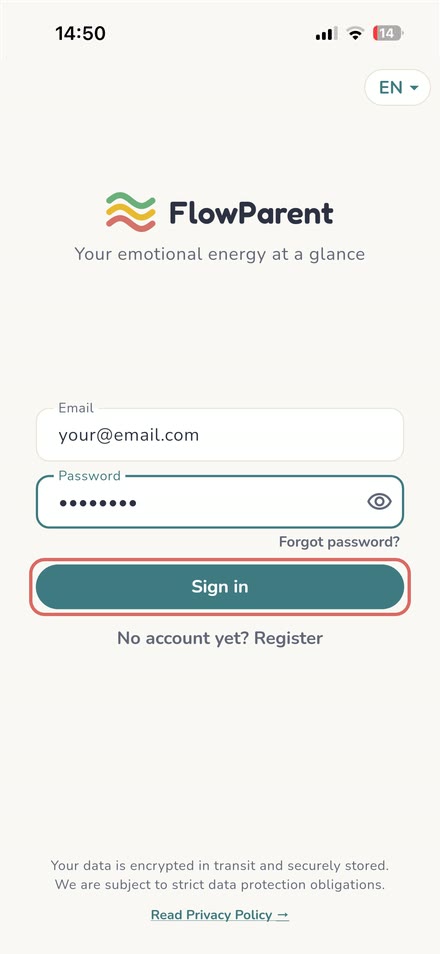
Sign-in page in the full-screen FlowParent app, “Sign in” highlighted
10

Sign in via the icon

Open FlowParent via the icon on your Home Screen. The app starts full screen, without the Safari bar. Sign in with your email and password.

Important: Even if you’re already signed in in Safari, you need to sign in once more in the app on your Home Screen. The app has its own storage.

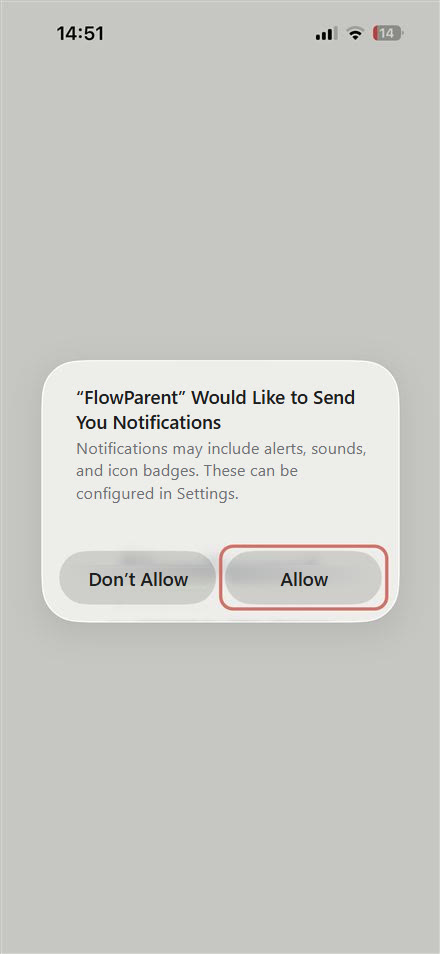
iOS prompt asking whether FlowParent may send notifications, “Allow” highlighted
11

Allow notifications

Your iPhone asks whether FlowParent may send notifications. Tap Allow. That way you’ll know when someone in your family changes their status.

On iPhone, notifications only work in the app on your Home Screen (iOS 16.4 or later).

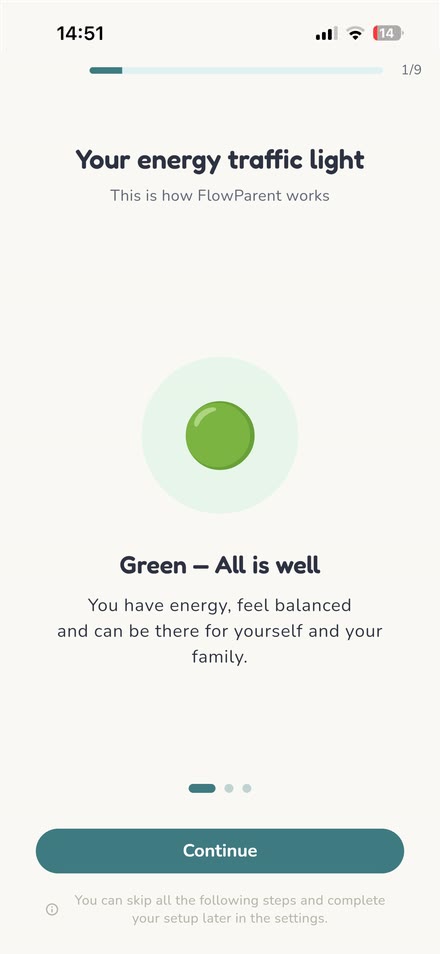
Introduction “Your energy traffic light”, step 1 of 9
12

Go through the introduction

Done! A short introduction in 9 steps explains the energy traffic light. Tap through with Continue. Anything you skip now can be added later in the settings.

Ready?

Start with step 1 – FlowParent opens in Safari.

Get started